
GCam Not Working? Complete Troubleshooting Guide for Crashes, Errors & Compatibility Issues (2025)
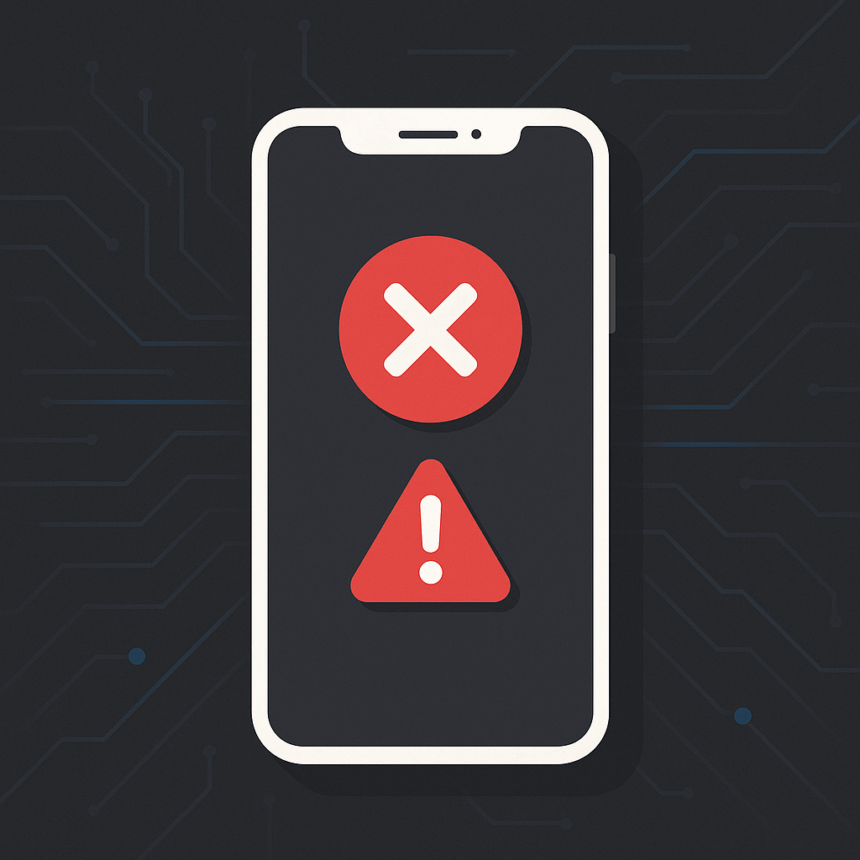
GCam offers some of the best photo quality among Android camera apps, but depending on your device and the port you use, problems like crashes, black screens, or non-responsive modes can occasionally occur.
This in-depth troubleshooting guide is designed to help you identify the cause of the issue and resolve it step-by-step — without requiring advanced technical knowledge.
Whether your GCam app does not open, crashes during Night Mode, or fails to switch lenses, this guide will walk you through every possible solution.
Understanding Why GCam Might Not Work
GCam ports are modified versions of Google Camera built by independent developers. Because Android devices vary widely in sensors, processors, and camera frameworks, compatibility issues are normal.
The most common reasons GCam fails include:
- Incompatible port version
- Hardware not supported
- Incorrect lens mapping
- Missing Camera2 API features
- Outdated Android build
- Conflicting XML settings
- Insufficient permissions
- Corrupted installation
- Bugs in specific GCam versions
Understanding the cause makes fixing the issue significantly easier.
1. GCam Does Not Open at All
If the app refuses to launch or closes immediately:
Try a Different Version
This is the most effective solution.
Some ports simply do not work with specific sensors or processors.
Clear App Data
Go to:
Settings → Apps → GCam → Storage → Clear Data
This resets the app to default settings.
Check Android Permissions
Ensure GCam has access to:
- Camera
- Storage
- Microphone
Missing permissions can prevent the app from opening.
Restart the Device
Some versions require a system-level refresh before functioning properly.
2. GCam Crashes When Switching Lenses
This is one of the most common problems, especially on devices with:
- Ultrawide lenses
- Macro lenses
- Telephoto lenses
It usually happens because the port is not fully calibrated for your auxiliary cameras.
Try a Port Known for Better Lens Support
Different developers handle lens mapping differently.
Disable Incompatible Lens Buttons
Some ports allow you to turn off extra lens buttons in the settings.
Adjust Lens Mapping Manually
Advanced ports let you assign the correct physical lens to each software button.
3. GCam Night Mode Crashes or Freezes
Night Mode and HDR+ Enhanced require more processing power.
Crashes usually indicate:
- Insufficient memory
- Incompatible HDR+ setting
- Incorrect XML file
- Bugs in the specific port version
Lower HDR+ Frame Count
Switch from “HDR+ Enhanced” to “HDR+” to reduce processing load.
Try a Different XML
Calibration files can significantly affect Night Mode.
Use XML files designed for your exact device model.
Close Background Apps
Free memory before launching Night Mode.
4. GCam Shows a Black Screen
A black screen means GCam cannot communicate properly with your camera sensor.
Enable or Disable Viewfinder Options
Some devices require disabling advanced processing in the preview.
Switch to a Different Library
Certain ports allow using different lib files to improve sensor compatibility.
Check for Camera2 API
If your device lacks necessary API levels, some modes will not display an image.
5. Portrait Mode Not Detecting Faces Correctly
Incorrect edge detection, artificial blur, or missing depth effect is usually caused by:
- Wrong camera sensor ID
- Too aggressive noise reduction
- Calibration mismatch
Load a Better XML File
Most XML files fine-tune portrait algorithms and improve edge precision.
Disable Face Retouching
Some devices perform better with minimal retouching.
6. Video Mode Not Working
GCam is primarily built for photo quality, not video.
Some phones cannot handle GCam’s video pipeline.
Try Lower Frame Rates
Switch from 60 FPS to 30 FPS.
Disable Stabilization
Some devices crash due to incompatible EIS settings.
Switch to Stock Camera for Video
This is common practice in the GCam community.
7. Fixing Colors That Look Too Warm, Cold or Over-Saturated
Color accuracy is one of the most noticeable issues on new ports.
Try a Different AWB (Auto White Balance) Option
Pixel-based AWB profiles often produce more natural colors.
Load an XML Calibrated for Your Device
Color accuracy largely depends on calibration.
8. GCam Is Slow or Laggy
If the viewfinder lags or shutter delay is too long:
Disable Unnecessary Processing
Turn off:
- Motion Mode
- Image Stabilization (if unsupported)
- Focus tracking
Use a Lightweight Port
Some versions are optimized for speed.
9. Installation Fails or Cannot Install
Possible reasons:
- Old Android version
- Corrupted APK
- Wrong CPU architecture
- Android security restrictions
Enable Installation from Trusted Sources
Under Special Access settings.
Try a Different APK Build
Architecture-specific builds may be required:
- Arm64-v8a
- Arm32
- Universal
10. XML File Does Not Load
XML not appearing or not applying?
Check Folder Names
Most ports use:
- GCam/Configs
- GCam/Configs7
- GCam/Configs8
- GCam/Configs9
Ensure spelling is exact.
Restart GCam After Loading XML
Some settings apply only after a restart.
Make Sure Storage Permission Is Enabled
XML cannot load without read/write access.
Advanced Troubleshooting for Experienced Users
If you want to go deeper:
Check Logcat Errors
Advanced users can identify crash sources using log output tools.
Switch Processing Pipelines
Some ports allow switching between Google’s and custom image pipelines.
Use Alternative Libraries
Custom lib files can improve clarity or fix sensor issues.
When to Try a Completely Different GCam Port
If you have tried several versions and still experience:
- Black screens
- Constant crashes
- Incorrect lens switching
- Unnatural colors
- Broken Night Mode
switching developers usually solves the problem.
Each developer specializes in different devices and sensor types.
Conclusion
Troubleshooting GCam does not have to be complicated. Most issues are related to compatibility, calibration, or device-specific limitations. By following the steps in this guide, you can quickly identify the cause of the problem and apply the correct solution.
GCam remains one of the most powerful photography tools available for Android users. With the right port and proper setup, you can unlock exceptional image quality on almost any device.
GCamLab will continue offering detailed guides, tutorials, and troubleshooting resources to help users achieve the best possible results.